- Published on
You Will Be Able To Control Any Website with AI: I Made Claude Drive Gemini and It's Mind-Blowing
- Authors

- Name
- aithemes.net

Playwright is a powerful open-source framework for web testing and automation. Developed by Microsoft, it allows developers to reliably automate interactions across Chromium, Firefox, and WebKit with a single API. Its speed, reliability, and support for modern web features make it an ideal engine for both automated testing and complex browser-based AI tasks.
The Model Context Protocol (MCP) is rapidly becoming the standard for connecting AI models to external tools and data. For developers and power users, the "holy grail" of local AI is giving the model eyes and hands—the ability to see a web page and interact with it.
The Claude Desktop App is a native application that brings the power of Anthropic's Claude AI models directly to your desktop. Unlike the web version, the desktop app is designed to integrate deeply with your local environment, making it the perfect host for MCP servers that require access to local resources, files, and tools like Playwright.
Playwright MCP acts as this bridge. Unlike standard scraping tools that just fetch HTML, the Playwright MCP server creates a two-way communication channel between Claude Desktop and a Playwright browser engine. This allows Claude to navigate, click, type, and even inspect the accessibility tree of web pages in real-time.
In this tutorial, we will focus on the Playwright MCP Bridge configuration on Windows, specifically highlighting how to connect Claude to an existing browser session (via the Bridge extension) to bypass complex authentication flows.
Prerequisites
Before we modify any configuration files, ensure your Windows environment allows for local server execution.
- Node.js (LTS Version) on Windows: The Playwright MCP server is a Node.js application. You must have Node.js version 18 or higher installed directly on your Windows system.
node --version - Claude Desktop App: You must use the installed Windows application, not the web browser version (
claude.ai), as the web version cannot connect to local MCP servers. - Playwright Browsers: While the package often downloads these automatically, it is good practice to install the dependencies manually to avoid timeout errors during the first run.
npx playwright install --with-deps - Claude Pro Subscription (Recommended): While MCP features are available to all users, a Claude Pro paid plan is highly recommended. Browser automation tasks often involve multiple back-and-forth messages as Claude "thinks" through navigation and extraction, which can quickly consume the usage limits of the free tier.
Configuring the MCP Server
The core of this setup is the claude_desktop_config.json file. This file tells the Claude Desktop App which local tools it is allowed to spin up and talk to.
Locate the Config File: On Windows, this file is located in your AppData folder. Open File Explorer and navigate to:
%AppData%\Claude\claude_desktop_config.json(If the folder or file does not exist, create it manually).Define the Server: Open the file in a text editor (like VS Code or Notepad) and add the Playwright MCP server configuration. We will use the
@playwright/mcppackage vianpxso you always run the latest version.claude_desktop_config.json{ "mcpServers": { "playwright": { "command": "npx", "args": [ "-y", "@playwright/mcp@latest" ] } } }command: We usenpxto execute the node package.args: The-yflag suppresses the "Are you sure you want to install..." prompt, which is critical because Claude creates a non-interactive shell.
Restart Claude: Completely quit the Claude Desktop app (check the system tray to ensure it's closed) and reopen it.
The Bridge – Connecting to an Existing Session
Standard Playwright instances are "incognito" by default—they don't share your cookies or login states. To let Claude interact with sites where you are already logged in (like GitHub, Jira, or internal corporate tools), we use the Playwright MCP Bridge.
Install the Chrome Extension: The official Playwright MCP extension is not available on the Chrome Web Store. You must download it manually from the official repository.
- Download: Go to the Playwright MCP Releases Page and download the latest source code or extension zip.
- Install: Extract the contents. Open Chrome and go to
chrome://extensions. Enable "Developer mode" in the top right, then click "Load unpacked" and select the folder you just unzipped.
Extension Mode Configuration
To enable the extension mode specifically, you must update your config arguments to include the
--extensionflag:claude_desktop_config.json"args": [ "-y", "@playwright/mcp@latest", "--extension" ]Launch via Bridge: When you ask Claude to perform a task now, it will look for a browser instance connected via the bridge rather than spinning up a new headless window. This allows you to log in manually, then hand over control to Claude.
The first time you initiate a connection, your browser will likely ask for explicit permission to allow the Playwright MCP server to take control of the tab.

You will know the connection is successful when you see the browser successfully launched and controlled by the server, often indicated by a distinct browser state or console message verifying the active session.

Automated Personal Dashboard Reporting
One of the most practical uses for this bridge is retrieving personal data from "walled gardens"—sites that require login and don't offer an easy-to-use API for your specific needs.
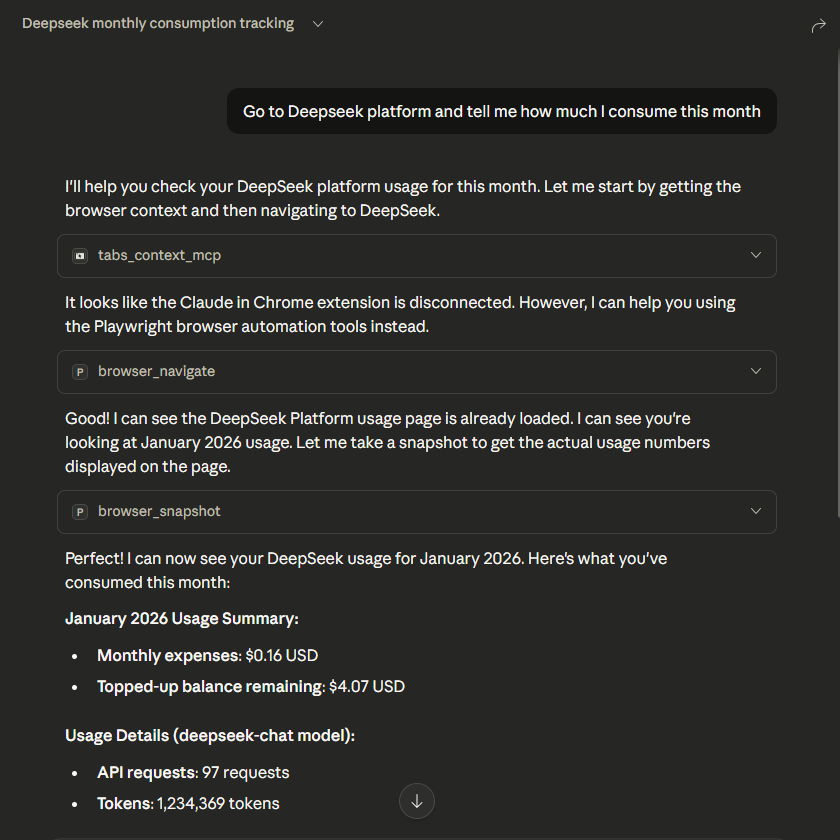
Scenario: You want to check your API usage or billing status without manually navigating through complex dashboards.
Go to the Deepseek platform and tell me how much I consumed this month.
The Process
- Navigation: Claude navigates to the Deepseek dashboard.
- Authentication: Because you are using the Bridge connected to your existing Chrome session, you are likely already logged in. If not, you can log in manually while Claude watches.
- Extraction: Claude finds the specific element displaying usage/billing statistics and reports it back to you.
Key Advantage
The biggest benefit here is security and convenience. You do not need to provide your username, password, or API keys in the prompt itself. Since Claude is driving your existing browser instance, it "piggybacks" on your active session cookies. This keeps your credentials safe and out of the chat history.
General Purpose
This approach generalizes to any platform where you need to fetch "read-only" data behind an authentication wall—checking bank balances, verifying SaaS subscription usage, or monitoring status dashboards—all without writing a single line of scraper code.
LLM-to-LLM Collaboration (Agentic Validation)
What if you could make two powerful AIs work together? With Playwright MCP, Claude can "drive" other web-based LLMs like Gemini or ChatGPT.
Scenario: You want to cross-reference technical instructions or combine the knowledge of two models.
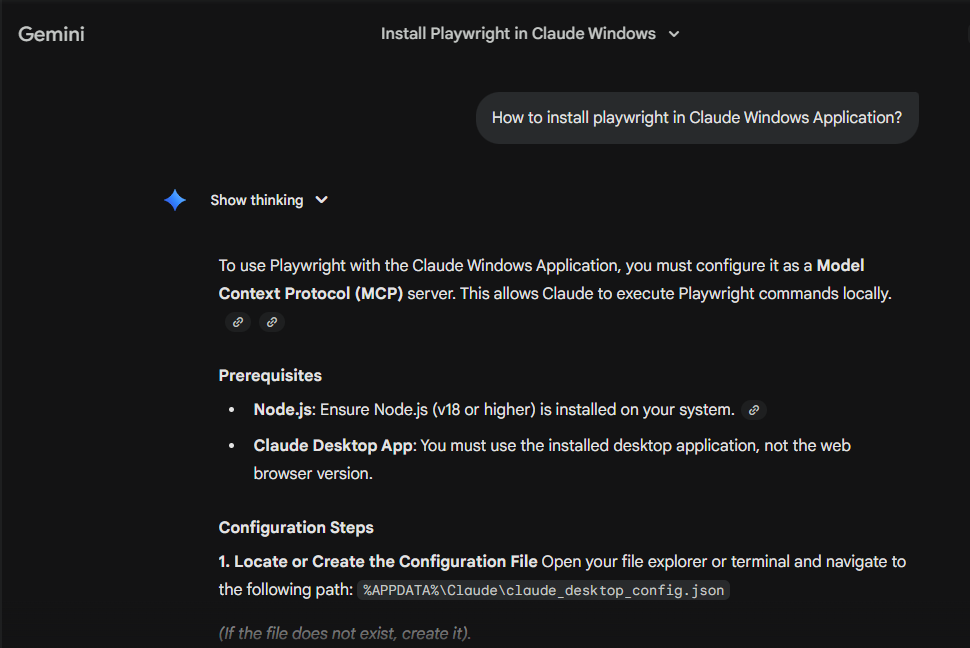
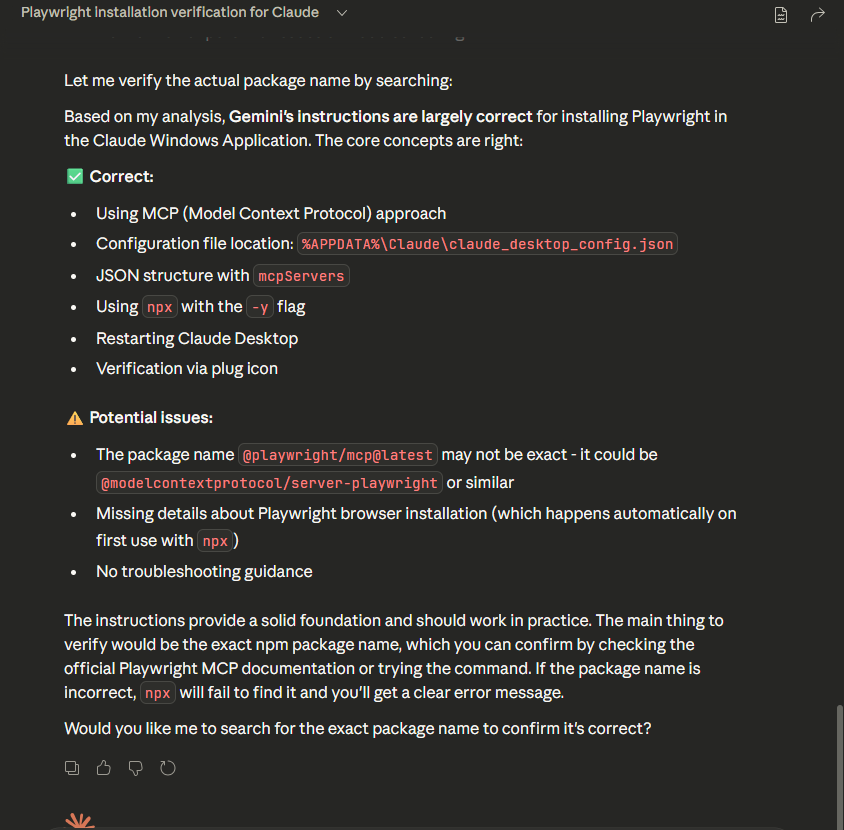
Go to gemini.google.com and ask how to install playwright in Claude Windows Application. Check the instructions you get and tell me if they are correct.
The Process
- Navigation: Claude goes to Gemini's URL.
- Interaction: It types the query into Gemini's chat box and submits it.
- Synthesis: Claude reads Gemini's response from the screen, compares it against its own internal knowledge base, and validates the accuracy—effectively creating a "peer review" system for AI outputs.
Why This Works
This turns the web browser into a universal interface for any AI model, allowing you to build complex workflows where one agent acts as the "executor" and the other as the "consultant" or "verifier."
Conclusion
Integrating Playwright with Claude Desktop via MCP transforms the AI from a passive text generator into an active agent capable of performing real-world work.
This setup is a paradigm shift for browser-based workflows, unlocking capabilities that previously required fragile custom scripts:
- Deep Research — Extract and synthesize data across disparate sources
- AI Collaboration — Create a universal interface for agent-to-agent interaction
- Admin Automation — Handle repetitive tasks within authenticated portals
- Multi-Step Operations — Execute complex workflows with intelligent decision-making
Perhaps most importantly, this setup enables a new era of AI-to-AI collaboration, where one model can peer-review, validate, or consult with another through the universal interface of the web.
The combination of Claude's reasoning with Playwright's execution creates a robust engine for intelligent automation.
By using the Bridge configuration, you bypass the biggest hurdle—authentication—allowing you to leverage this power immediately.
Important Security Note
While this setup protects your authentication credentials (which remain local), please be aware of data confidentiality risks. Any information displayed on a web page that Claude visits—including personal data, financial details, or proprietary content—is effectively "seen" by the model and transmitted to the AI provider for processing. Always exercise caution when directing the agent to pages containing sensitive information.
References
- Model Context Protocol (MCP) Documentation
- Playwright MCP GitHub Repository
- Official Playwright MCP Extension (GitHub Releases)
Join the conversation! Have questions or a cool use case for the Playwright MCP Bridge? Share your thoughts in the comments section below (GitHub account required).
Keep reading
Related posts
May 4, 2025
0CommentsComprehensive Tutorial: Transforming FastAPI APIs into Intelligent Tools with FastAPI-MCP
Discover how FastAPI-MCP seamlessly bridges the gap between your FastAPI APIs and AI agents. This comprehensive tutorial covers setup, security, deployment, and real-world use cases, empowering you to create intelligent applications with ease.
Mar 28, 2025
0CommentsUnlocking the Power of AI: A Deep Dive into Model Context Protocol (MCP)
Discover how the Model Context Protocol (MCP) is revolutionizing AI by standardizing connections between large language models (LLMs) and external tools, enabling seamless integration and enhanced capabilities.
Dec 7, 2025
0CommentsSecure Your Data, Unlock AI: Deploy Open WebUI Locally with Remote Ollama GPU
This technical guide details the deployment of Open WebUI in a Docker container via WSL, configured to interface with a remote, GPU-accelerated Ollama instance on a local network. Follow these steps for a decoupled, high-performance LLM interface setup.
